Codex Desktop Updates: What's New for Skins in October 2026
Codex desktop update notes for skin users: changes in the 103-skin index, new skin features to check, safe backups, and a practical rollback path.
A Codex desktop update can change more than the version number. Skin users care about four practical questions: does the theme still load, did local color edits survive, are newly added interface surfaces styled, and can the previous setup be restored quickly? The October 2026 snapshot at awesomecodexskin.com now contains 103 skin files, compared with the 99-skin planning baseline. That growth makes a repeatable update check more useful than guessing from a screenshot.
Codex skin changelog: what changed in the index
The visible change is library coverage. Four more skin files are present than in the original 99-skin baseline, while the collection now spans desktop themes, CLI palettes, character skins, light workspaces, and terminal-oriented ports. The number does not mean every skin supports every engine. It means there are more tested starting points for different workflows.
| Update check | What to look for | Why it matters |
|---|---|---|
| Theme loading | The selected skin appears after a full restart | Confirms the engine still reads its theme source |
| Local overrides | Custom background, accent, and syntax colors remain | Prevents an update from silently replacing personal edits |
| New surfaces | Dialogs, side panels, search, and diff views are legible | Older skins may not define tokens for newer UI areas |
| Rollback | A known-good theme can be applied without repairing files | Keeps an update problem from blocking work |
The four related skins below give a useful test set. Cyber Neon stresses bright accents on dark surfaces. Clear Glass exposes weak borders and transparent layers. Monokai Stone is a restrained dark baseline. Berry Light Journal makes low-contrast text easy to spot in daylight.
New skin features to check after an update
Do not judge a skin from the editor canvas alone. Open the places where a theme usually breaks first:
- Search results with a selected row and an inactive row.
- A diff containing additions, deletions, and unchanged context.
- A modal dialog over the main workspace.
- A long terminal session with warnings, links, and code blocks.
- Disabled controls, placeholder text, and keyboard focus rings.
A new surface can fall back to default colors even when the main workspace looks correct. That is why an update check should cover state colors, not just the background. If a focus ring disappears or selected text blends into its panel, the skin needs an updated token rather than more brightness everywhere.
Record your current setup before updating
A small before-state saves time later. Record the version, active theme name, engine or manager, and any hand-edited file. If your setup keeps themes under ~/.codex, this read-only command produces a file list you can compare later:
codex --version
find ~/.codex -maxdepth 3 -type f | sort > codex-files-before.txt
The exact theme directory depends on the engine, so confirm its location before copying or changing anything. Keep one known-good skin available in addition to your daily theme. If the update damages only one custom file, switching to that baseline tells you whether the problem sits in the skin or the application.
A 10-minute post-update skin test
Run this sequence before returning to a long session:
- Restart Codex Desktop rather than relying on a hot reload.
- Apply the same skin by its exact name.
- Open search, settings, a diff, and the embedded terminal.
- Compare the active files with
codex-files-before.txt. - Switch to one related skin, then switch back.
- Reapply local overrides only after the base skin passes.
If several skins fail in the same UI area, the update probably introduced or renamed a shared color token. If only one skin fails, restore that skin from a clean copy and add personal edits one at a time. This distinction avoids reinstalling an engine for a single damaged palette.
FAQ
Did the Codex desktop update delete my skin?
Usually the skin is still present but no longer selected, cached under an old name, or missing a token required by a new surface. Restart first, choose the exact theme name, and compare the theme directory with your before-state file list.
Which skins are useful for an update test?
Use skins that expose different failure modes. Cyber Neon checks saturated accents, Clear Glass checks layers and borders, Monokai Stone checks dark readability, and Berry Light Journal checks light-mode contrast.
Should I edit a broken skin immediately?
Test a clean copy first. Editing before you know whether the base file still works can mix an application change with an old local override. Keep the clean copy, make one change, and test the affected surface again.
Keep a stable skin path
Browse the live skin library at awesomecodexskin.com and compare current releases in the blog index. The related skin cards on this page link directly to four practical test themes. Bookmark one dark and one light option before the next update, then keep your file list beside them. A two-minute record before updating is cheaper than rebuilding a palette from memory.
Skins mentioned in this post
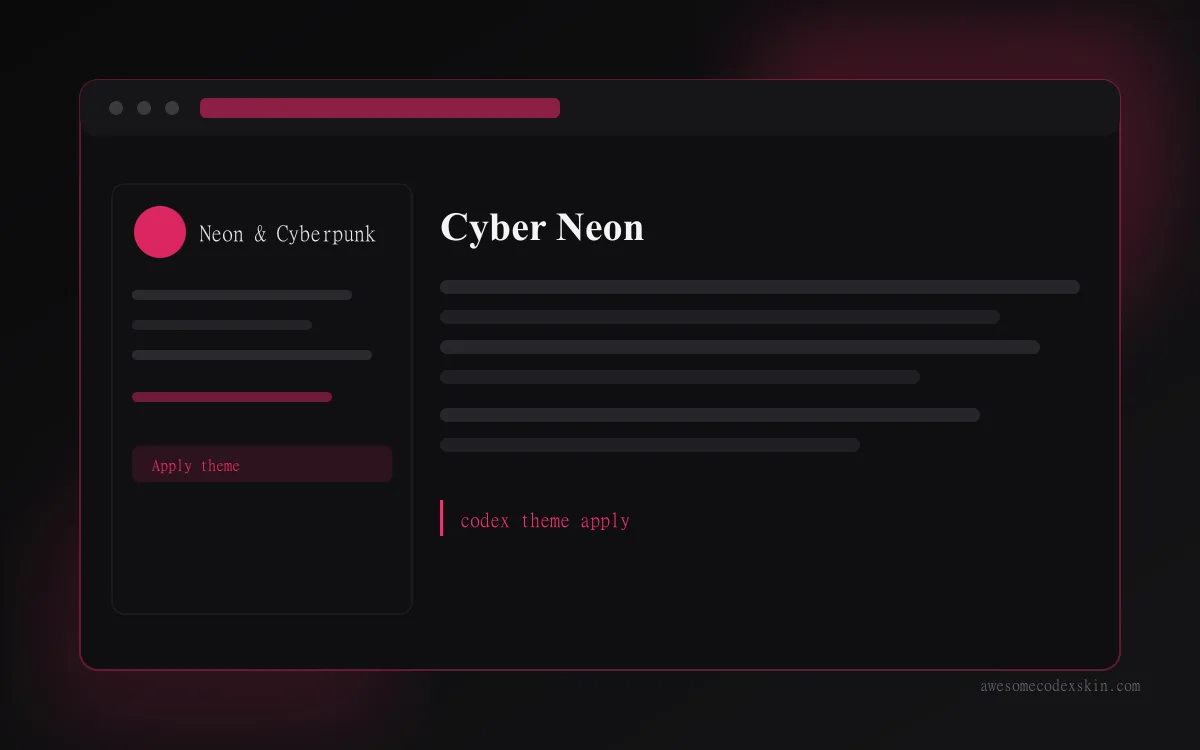 Cyber Neon ~1,180 installs (est.)
 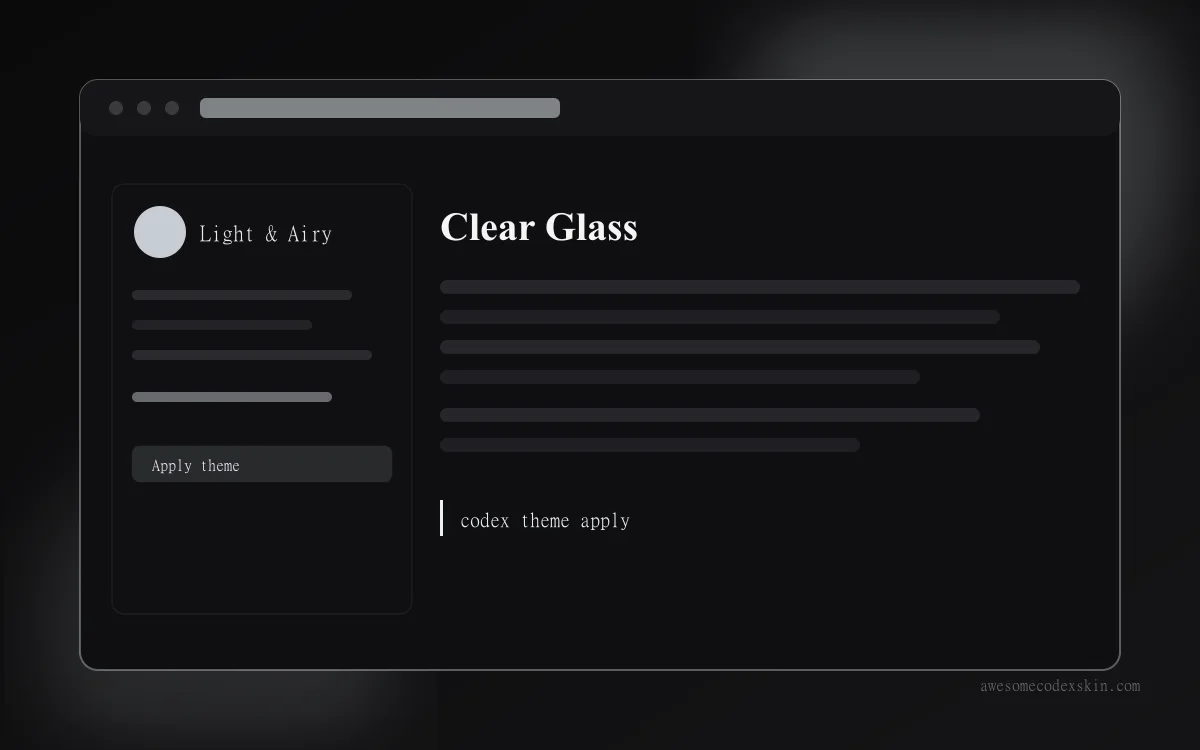 Clear Glass ~1,620 installs (est.)
 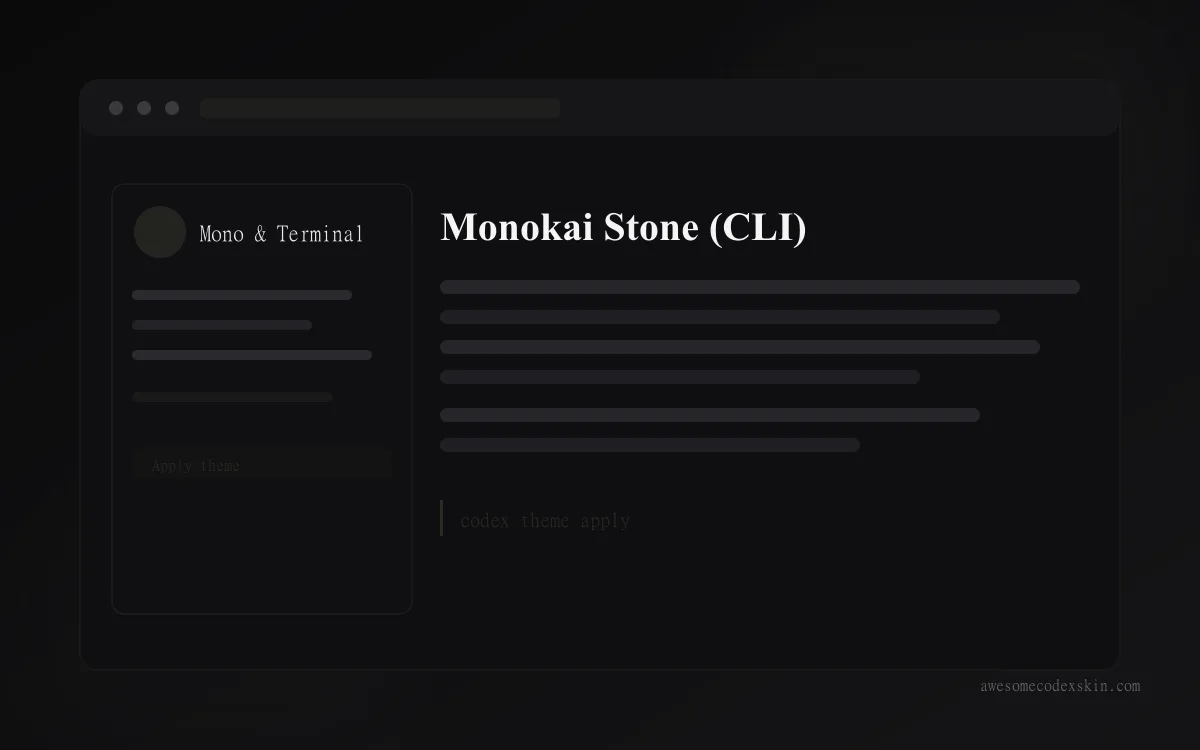 Monokai Stone (CLI) ~1,500 installs (est.)
  Berry (light journal) ~530 installs (est.)
 Browse all skins .