Codex Skin Backup and Restore: A Workflow That Survives a Reinstall
How to back up a Codex skin, export Codex theme settings, and restore a Codex skin after reinstall, plus one way to keep a skin in sync across machines without clobbering a setup that already works.
Codex skin backup is one of those jobs nobody does until the week it matters. You reinstall Codex, or an update resets the theme directory, or you set up a second machine, and the palette you spent an evening tuning is simply gone. The theme itself is often still somewhere on disk; the settings that made it yours are not.
This guide covers the full loop: what to copy, how to export Codex theme settings, how to restore a Codex skin after reinstall, and how to keep one skin in sync across machines. The paths follow the layout described in Codex skin configuration file deep dive.
What a Codex skin backup actually contains
A theme file is only half of it. Most skins ship as a .codedrobe-theme or a JSON palette (the formats are broken down in Codex skin file formats explained), and that part travels well. The rest is state your install created around the theme:
| Item | Where it sits | Travels to another machine? |
|---|---|---|
| Theme file or palette | skin directory, or an export bundle | Yes |
| Applied-skin state | Codex config file | Yes, but paths may need fixing |
| Engine choice | config file or the engine’s own store | Partly |
| Hand-made tweaks | wherever the engine keeps them | Only if the engine exports |
| Terminal mirror | terminal config, not Codex | Needs its own step |
That last row trips people up. If you mirrored the palette into your terminal, the terminal keeps its own copy and a Codex restore will not touch it. Sync it separately, as described in Sync your terminal and Codex skin.
How to export Codex theme settings
Export before you touch anything else. Two minutes now beats rebuilding a palette from screenshots later.
- Find the active skin.
codex skin currentprints the name and the file backing it, or open the gallery in Codex Skin Manager and read it off the card. - Copy the theme file out of the skin directory into a folder you actually back up.
- Export the settings block from the Codex config file, not the whole file. A full copy drags in machine-specific paths you will fight later.
- If you use an engine, use its own export too. Skin Manager keeps a library of its own; Dream Skin presets live as prompt presets. The command cheat sheet lists the exact flags.
- Write down which engine applied it. Restoring a Desktop skin with a CLI tool is the most common way to “restore” and get nothing.
Name the folder by skin and date. clear-glass-2026-10-22 beats backup2.
How to restore Codex skin after reinstall
Order matters more than speed here.
- Install first, restore second. A theme file copied into a directory that does not exist yet gets overwritten the moment Codex creates it.
- Re-import through the engine you exported from. Same engine in, same engine out.
- Fix paths before you apply. Open the exported settings and replace any absolute path with the one on this machine. An import that silently does nothing almost always means a path pointed at a directory that is not there.
- Verify on a real session, not a preview. Previews render the palette; they do not prove the engine applied it.
If the restore leaves you with a half-applied look, something else is writing the theme after you. Two appliers fighting over the same file is the usual cause, and Run multiple Codex skin engines without conflicts covers how to settle it. When you simply want to start over, How to uninstall and reset a Codex skin gives the clean path.
Codex skin sync across machines
Two options, and they suit different people.
| Approach | Setup cost | Best for |
|---|---|---|
| Version the export folder | Low, one git repo | One main machine, occasional second |
| Sync the skin directory with a file-sync tool | Lowest | Two machines you use daily |
| Re-apply from the skin index on each machine | Near zero | Casual setups, few tweaks |
The export-folder approach wins if you edit skins. You get a diff when a palette changes, and a bad edit is one revert away. Live directory sync is faster to set up but will happily propagate a mistake to every machine at once.
Whichever you pick, keep the engine setting out of the synced set. Machine A may have Skin Manager while machine B only has the CLI, and a shared engine value will fail on one of them.
Quick FAQ
Where does Codex store the skin I applied? In the config file next to your install, plus the engine’s own store if you use Skin Manager or Dream Skin. Copy both.
Can I restore a Codex skin after reinstall with just the theme file? You get the colors back. Engine tweaks and the applied state need the exported settings.
Does a backup work across machines? Yes, once paths are relative or re-pointed. Absolute paths are why imports quietly do nothing.
How often should I make one? After any change you would hate to redo. Realistically: once per skin you use, then again after a big edit.
Where to go next
Every skin in the Codex Skin Index can be exported and restored with the steps above, so a backup is worth keeping for the ones you actually reach for. Start with a light theme like Clear Glass, or try Cyber Neon if you want something louder to test the round trip on. Installation basics are in How to install Codex skins, and the rest of the guides are listed at /blog. Everything here runs on awesomecodexskin.com.
この記事で紹介したスキン
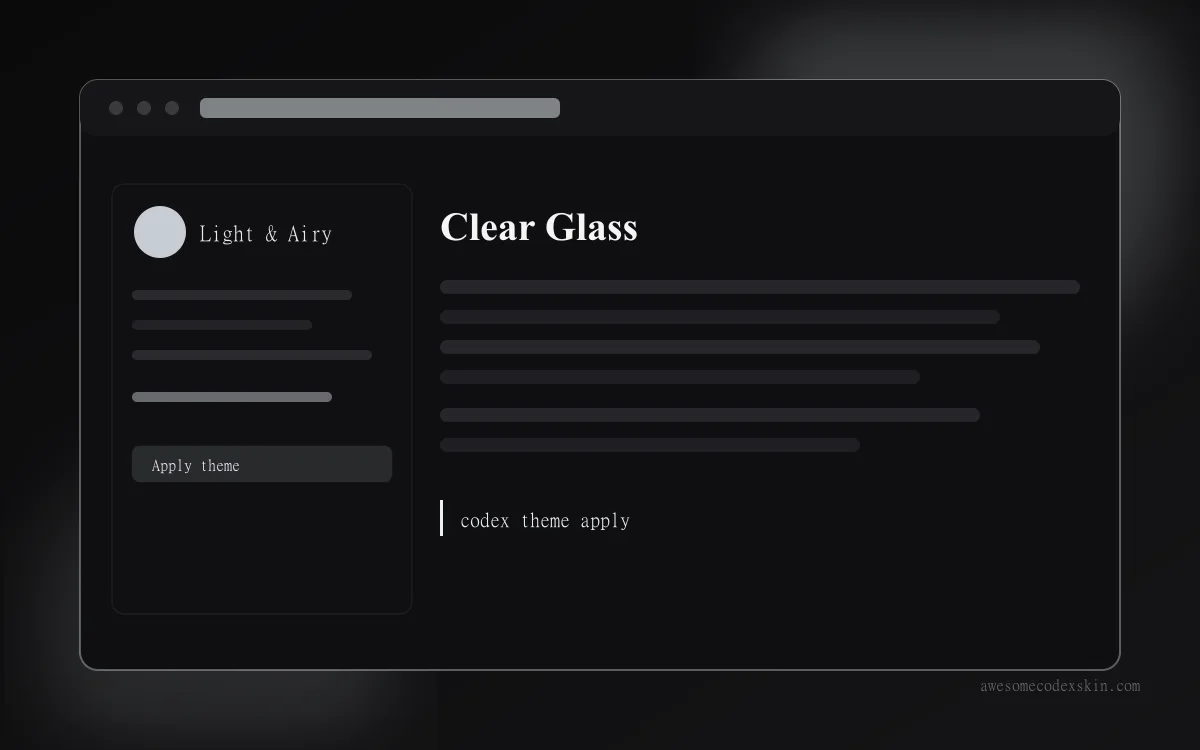 Clear Glass インストール約 1,620 回(推定)
 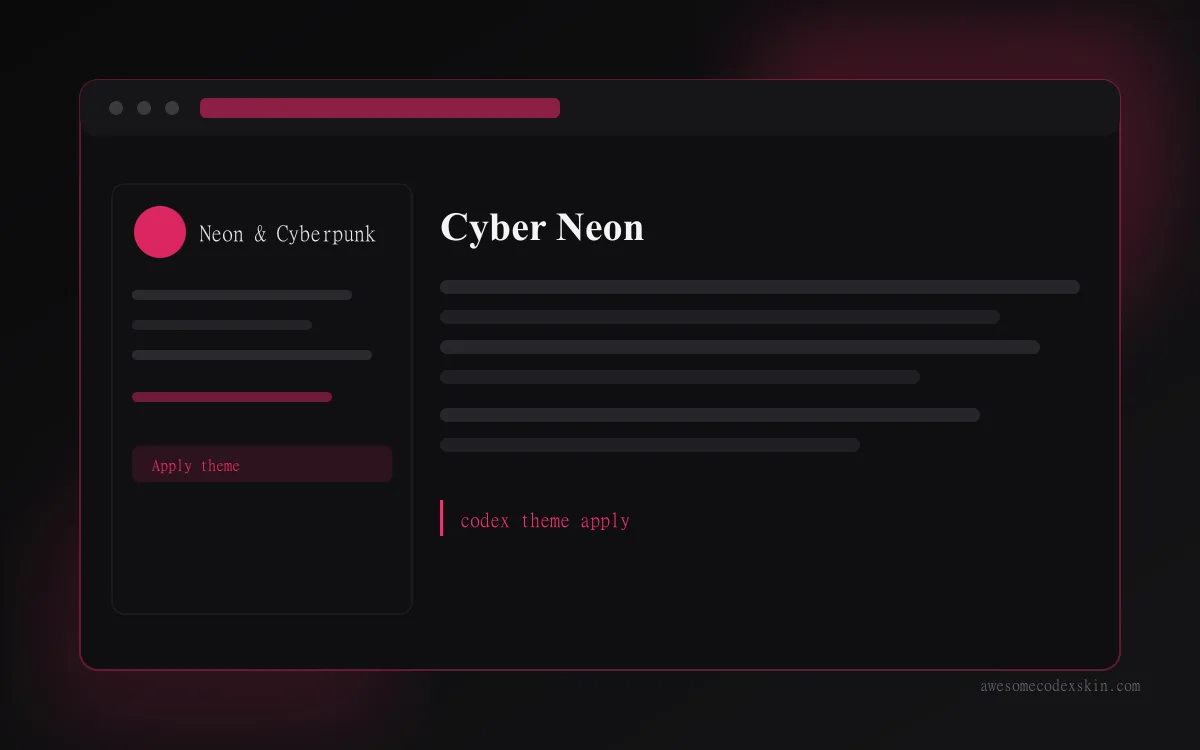 Cyber Neon インストール約 1,180 回(推定)
 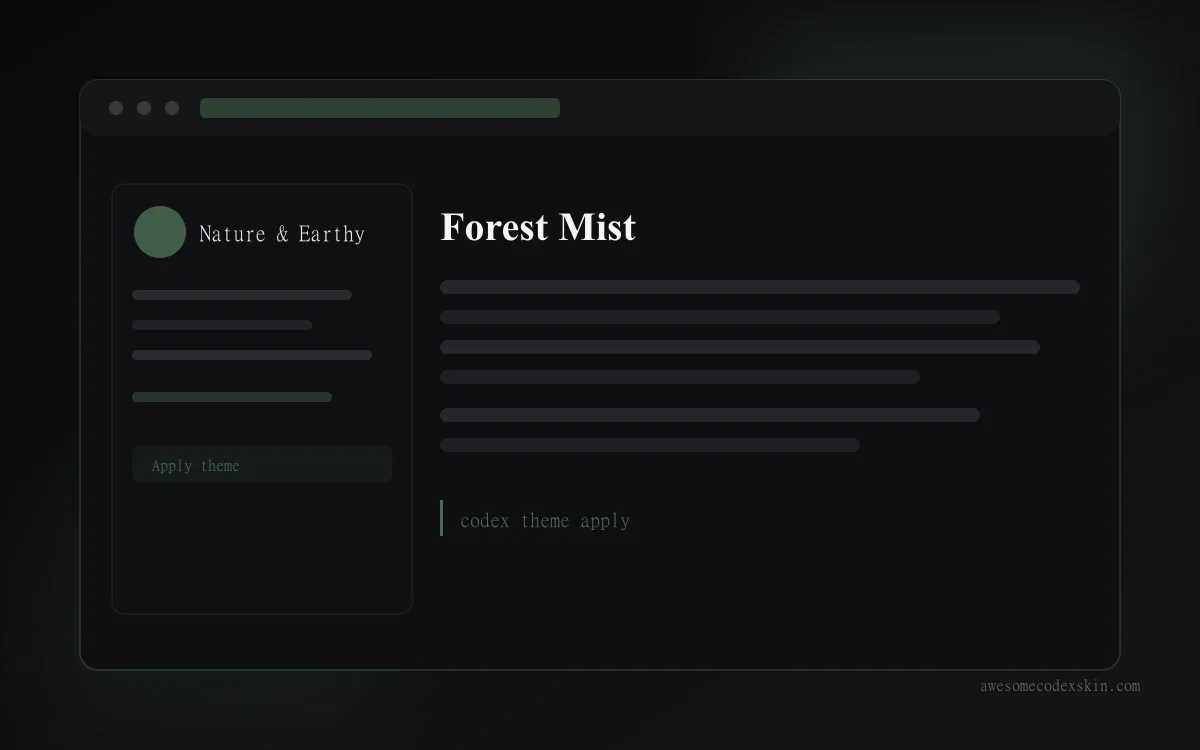 Forest Mist インストール約 880 回(推定)
 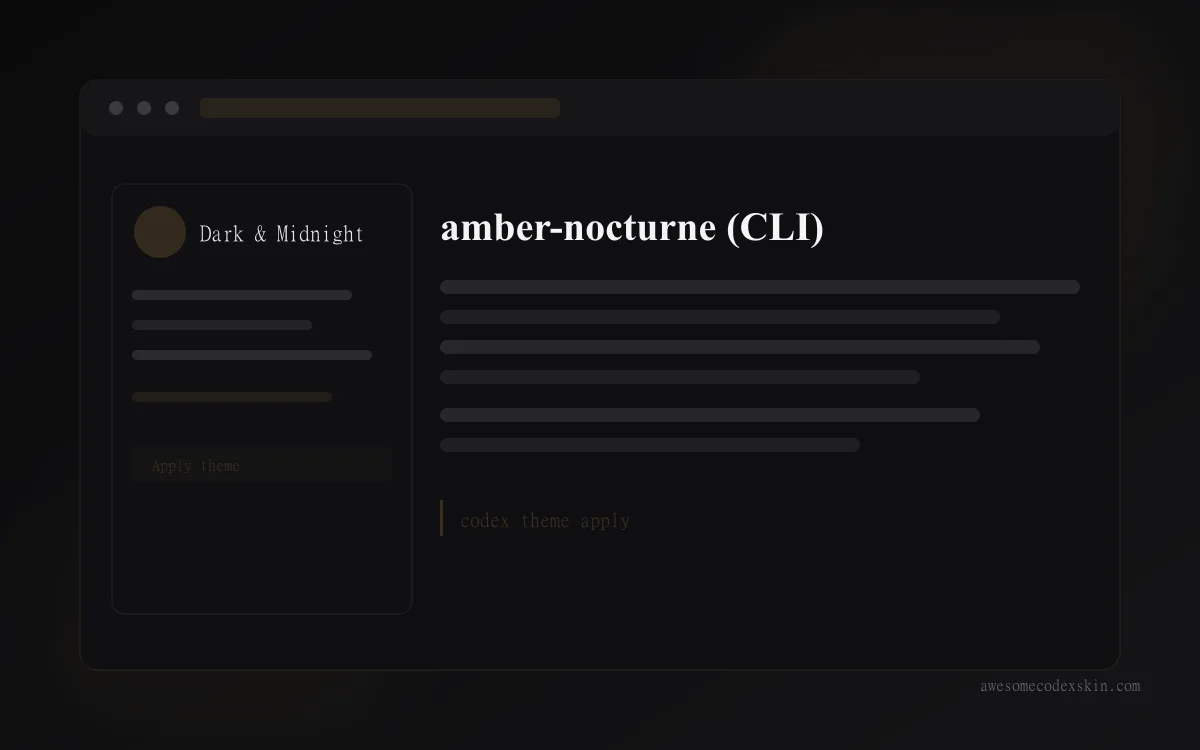 amber-nocturne (CLI) インストール約 410 回(推定)
 すべて見る skins .