Manage Your Codex Skin Library: Backup, Dedupe, Switch Fast
Skins pile up fast. A tiny system — archive, dedupe, name files properly — keeps your Codex skin library tidy and your switch time under ten seconds.
Three months into collecting Codex skins, my setup was a mess: 40 themes in a folder, three of them nearly identical, no idea which one I actually used. The switch tool listed everything, so picking took longer than using. Then I spent twenty minutes building a system that fixes it for good.
If you’re at that point — or want to avoid it — here’s the whole system. It’s small: archive, dedupe, name well.
Step 1: One folder, one file per skin
Keep every skin file in a single folder, one file per theme. Most engines already do this. The rule that saves you later: never edit the shared copy. If you want to tweak a skin, copy it to a “personal” subfolder first and edit the copy. That way your library stays clean and your tweaks don’t get overwritten by updates.
Step 2: Name files like an inventory
A file named theme-final-2.md is a trap. Use a consistent pattern:
[family]-[variant]-[source].codexthemeExamples from this index done right: Sakura Pink Dawn, Hatsune Miku, Cyber Neon, Berry (light). When the filename matches what the theme looks like, the folder becomes searchable — you stop opening files to remember which is which.
Step 3: Dedupe once a month
People don’t accumulate duplicates on purpose; themes get copied, re-downloaded, renamed. Once a month, run a quick pass:
- Sort by file size — near-identical sizes with similar names are the usual suspects.
- Open two candidates side by side and compare the palette hexes.
- Keep the one from the original source; delete or archive the copy.
In my cleanup I found three “dark blue” themes that were the same palette under different names. One survived.
Step 4: Back up the config, not just the files
Skins are just files — but the active theme you chose lives in your Codex config. Back up both:
- The skins folder (a zip or a git repo works).
- The config file that stores which theme is active (it’s tiny — paste it anywhere).
If you switch machines, restore both and you’re exactly where you left off. This is the difference between “I lost my setup” and “ten minutes to restore”.
Step 5: Keep a short switch list
Your daily reality is 3–5 skins, not 40. Pick them by mood:
- Sakura Pink Dawn — pastel, gentle, for creative sessions.
- Hatsune Miku — bright, energetic, for when you need a spark.
- Cyber Neon — loud, for demos and late-night flow.
- Berry (light) — the calm daylight default.
Everything else lives in the archive. Fewer choices = faster switching, which is the whole point of having a theme system at all.
Quick FAQ
Where does Codex store my skins and config?
Depends on your engine and OS, but typically under your user config directory (e.g. ~/.config/codex or ~/Library/Application Support/Codex). Check your engine’s docs — and back up that folder, not just individual files.
Should I version my skins in git? Yes, if you already use git. A private repo holding the skins folder plus the config is the cheapest perfect backup. Push after every meaningful change.
Can I have too many skins? Only if they slow you down or bloat startup — see our performance tips. Storage-wise, 40 skins is nothing. Choice-wise, your switch list should stay short.
An hour of tidying now saves you from a “which theme was I using” hunt later. Archive the old, keep the favorites — like Sakura Pink Dawn and Cyber Neon — and back up both files and config. Browse the full index to build your short list, or check the installation guide if you’re just getting started.
이 글에서 소개한 스킨
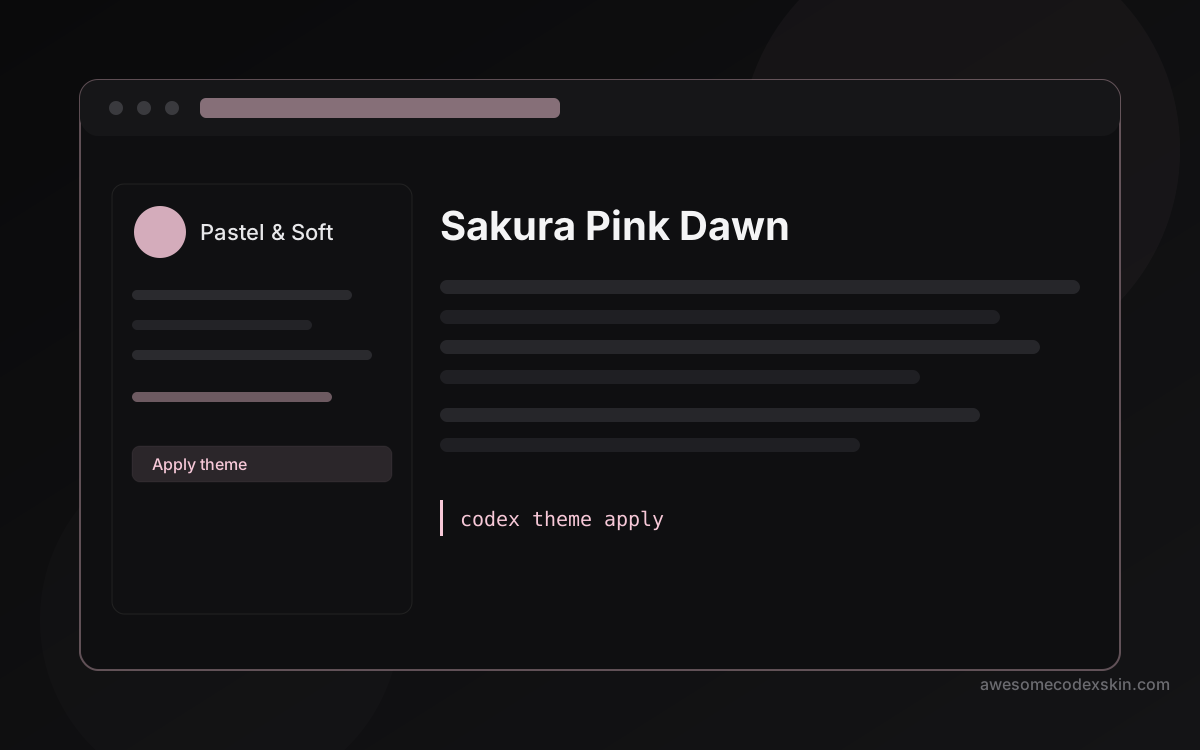 Sakura Pink Dawn 설치 1,020회
 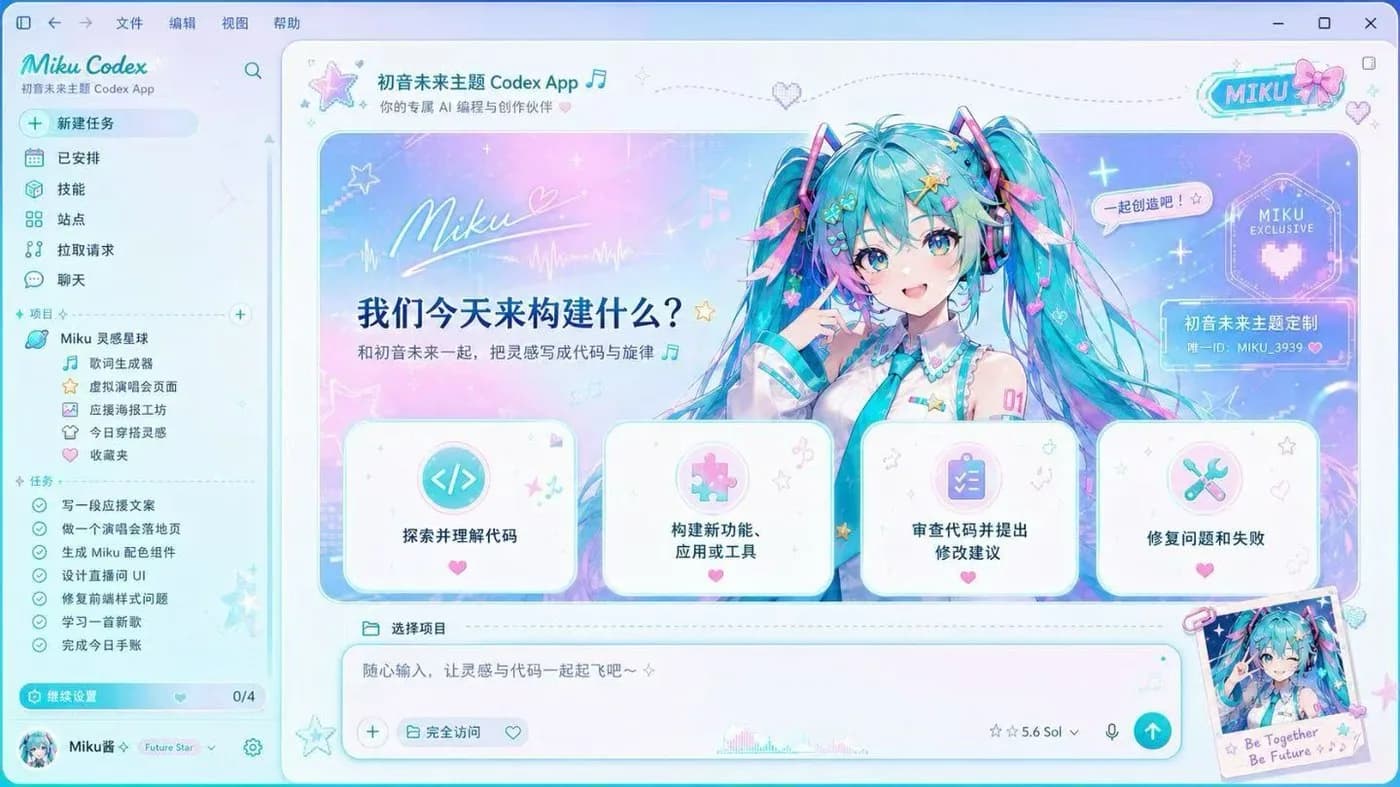 Hatsune Miku 설치 2,540회
 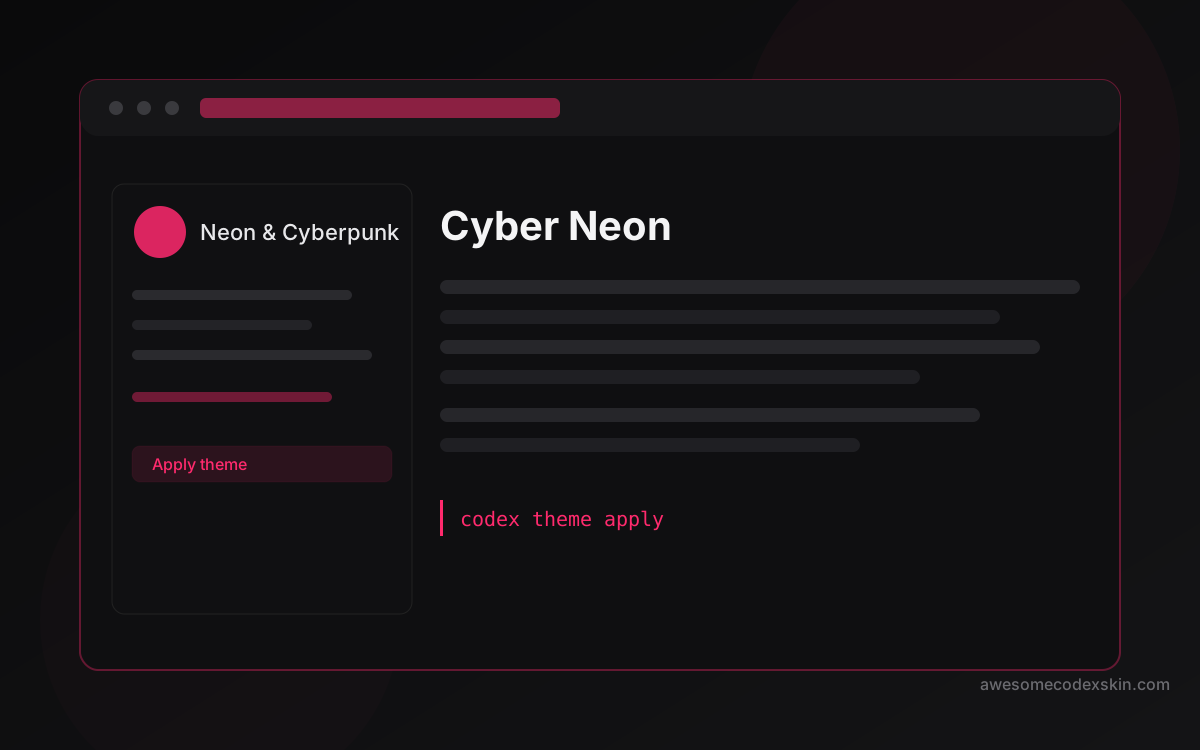 Cyber Neon 설치 1,180회
 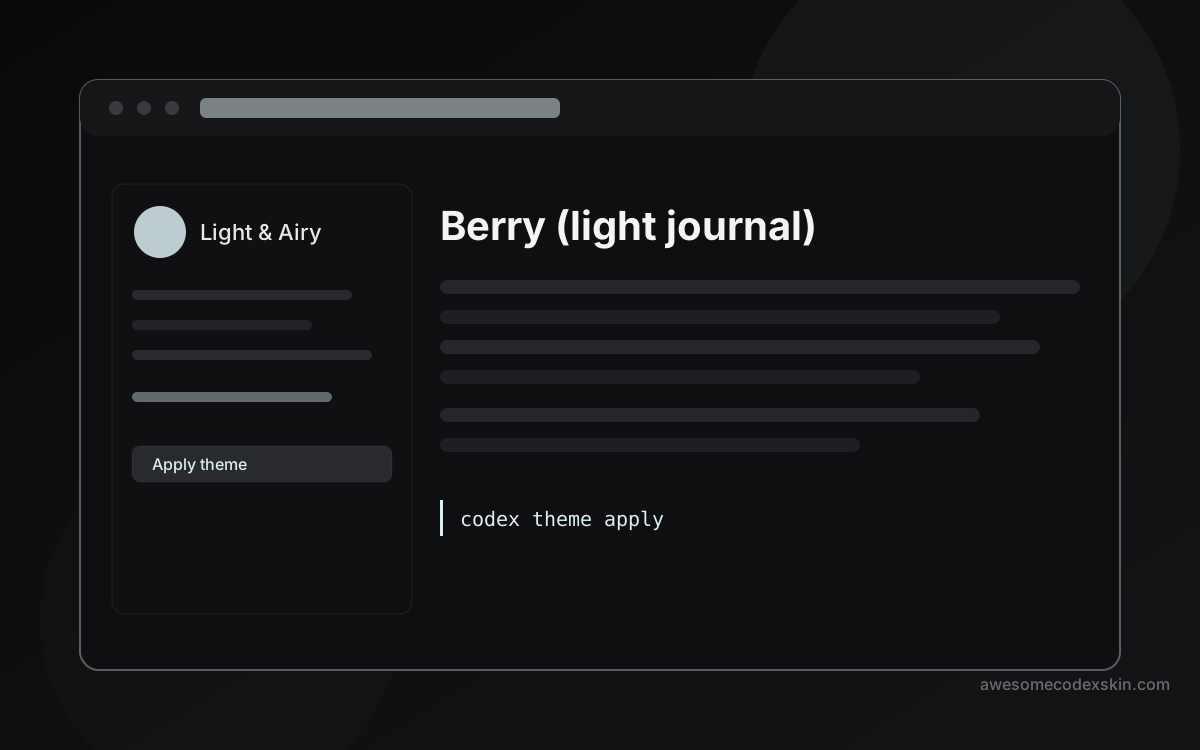 Berry (light journal) 설치 530회
 모두 보기 skins .